

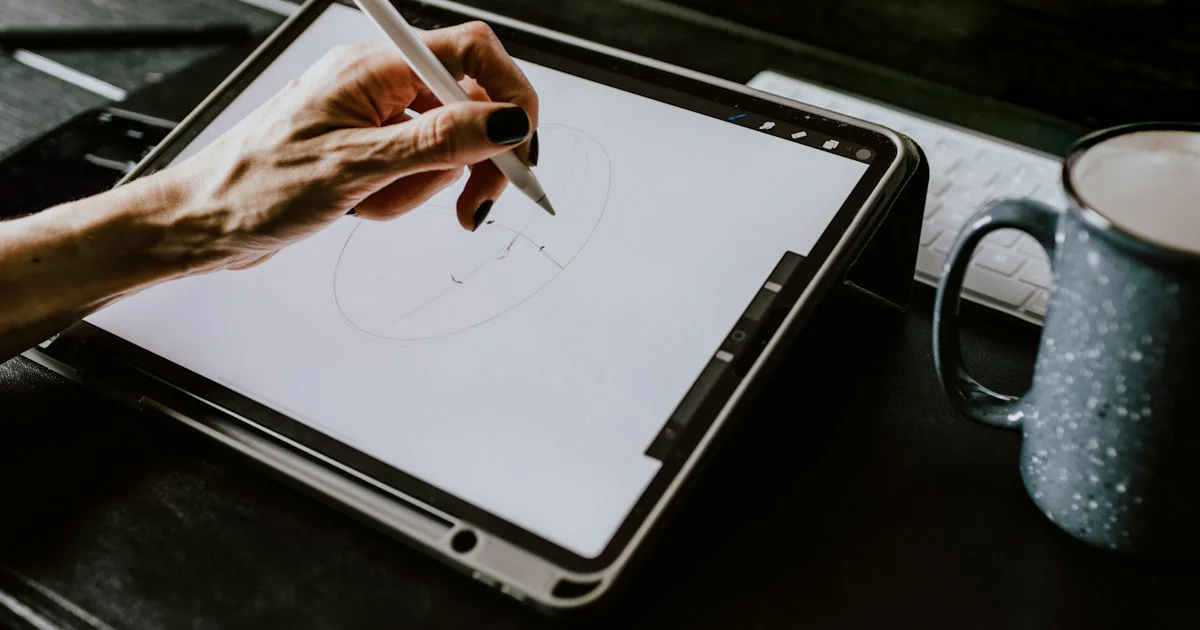
A paper notebook never runs out of battery, but it also never searches, syncs, or undoes a mistake. The best tablet for note taking and drawing gives you handwriting that feels close to paper plus everything paper cannot do. This guide covers what actually matters — pen feel, screen surface, and software — and which type suits which person.
Key Takeaways
- The pen matters more than the tablet. Low lag and pressure sensitivity decide whether writing and sketching feel natural.
- Screen size is a trade-off, not an upgrade. Around 11 inches suits note taking; 12 inches and up suits serious drawing.
- A matte screen protector adds paper-like friction to glass for a few dollars, and often fixes the “too slippery” complaint entirely.
- Pick your app before your device. The strongest note and art apps are usually tied to one operating system.
- E-ink tablets are excellent for writing and reading and poor for color art. Decide the job first, then the hardware.
What the Best Tablet for Note Taking and Drawing Really Needs
The short answer: a low-latency pressure-sensitive pen, a screen with a little friction, and software you actually enjoy opening. Processor speed, storage size, and cellular service change the daily experience far less than those three things.
Latency is the delay between the pen moving and the ink appearing. Below roughly 20 milliseconds most people stop noticing it, and the tablet starts feeling like paper instead of a computer. Pressure sensitivity is what makes a line get thicker when you press harder, which matters enormously for drawing and barely at all for grocery lists. Tilt support, which shades like the side of a pencil, sits somewhere in between.
Best for Students Taking Class Notes
For lecture notes, prioritize weight, battery life, and an app with good handwriting search. A 10 to 11-inch tablet is the sweet spot — big enough to write comfortably, light enough to hold in one hand while standing in a hallway.
You do not need the most expensive pen here. Basic pressure sensitivity is plenty for handwriting, and the money is better spent on a keyboard case so the same device handles essays. Look for a tablet that can split the screen between a lecture slide and your notes, since that single feature saves more time than any spec on the box.
Best for Artists and Illustrators
Drawing changes the priorities completely. Here you want the largest screen you can afford to carry, full pressure and tilt support, and a color-accurate display. A laminated screen — where the glass sits directly on the panel with no air gap — matters a lot, because any gap makes the ink appear slightly beneath the pen tip and throws off your accuracy.
Also check refresh rate. A 120Hz screen makes strokes feel noticeably more connected to the pen than a 60Hz one. It is one of the few premium specs that genuinely earns its price for artists.

Best for Reading and Annotating PDFs
If most of your work is marking up documents rather than creating them, an e-ink tablet deserves a serious look. The screen is matte, glare-free, and easy on the eyes for hours, and the writing feel is the closest thing to paper on the market.
The trade-offs are real though. E-ink refreshes slowly, shows no color on most models, and runs a limited set of apps. It is a superb tool for one job and a frustrating one for everything else.
Best for Someone Who Wants One Device for Everything
If the tablet has to replace a laptop as well, look at the larger premium models with keyboard and trackpad support and a desktop-class file system. You will pay considerably more, and you should be honest about whether you will really stop using a laptop.
For most people the answer is no. A mid-range tablet plus the laptop you already own is usually a better outcome than one expensive device that does both jobs at about 80 percent.
Best Tablet With Stylus Comparison
This best tablet with stylus comparison stays at the category level rather than naming models, since specific products are replaced every year while these trade-offs stay the same.
| Type | Best for | Trade-off |
|---|---|---|
| Premium 12-13 inch tablet | Illustration, design, laptop replacement | Expensive and heavy to hold for long stretches |
| Mid-range 10-11 inch tablet | Class notes, meetings, casual sketching | Smaller canvas; pen is often sold separately |
| Budget tablet with basic stylus | Handwriting, annotation, kids | Noticeable pen lag; little or no pressure sensitivity |
| E-ink writing tablet | Reading, PDF markup, distraction-free notes | Slow refresh, limited color, few apps |
| Pen display for a computer | Studio art work at a desk | Not portable; needs a computer to function |
Affordable Drawing Tablet Ranked by Use Case
If the budget is tight, an affordable drawing tablet ranked by what you actually plan to do beats one ranked by raw specs. This order assumes you want to spend as little as possible without regretting it.
- Last year’s mid-range tablet. The single best value in the category. Pen support is identical and the price drops sharply once a new model lands.
- A refurbished premium model. Gets you a laminated 120Hz screen for mid-range money, usually with a warranty.
- A pen display that plugs into your existing computer. The cheapest route to a large drawing surface if you never need it to be portable.
- A budget tablet with a third-party active stylus. Fine for handwriting, disappointing for art. Buy this only if notes are the real goal.
Tablet for Students 2026 Review Checklist
Any useful tablet for students 2026 review should answer these before it recommends anything, because they are the points that decide whether a tablet survives a full semester.
- Where does the pen live? A pen that charges magnetically on the tablet body gets used. A pen with a separate cable gets lost.
- Does the school’s software run on it? Check required exam browsers and learning platforms before buying, not after.
- Real battery life under a pen workload. Handwriting for six hours drains far faster than video playback figures suggest.
- Storage you cannot expand. Handwritten notes are small, but recorded lectures and PDFs are not.
- Repair and replacement cost. Tablets get dropped in backpacks. A cracked premium screen can cost more than a whole budget tablet.
How We’d Shortlist One
Work through these in order and the field narrows quickly.
- Decide the main job: notes, art, or document markup. Do not try to optimize for all three.
- Pick the app you want to live in, then rule out any tablet that cannot run it.
- Set your screen size from how you will carry it, not from how it looks in photos.
- Confirm the pen is pressure-sensitive if you plan to draw, and check whether it is included in the price.
- Add a matte screen protector to the budget from the start. It is the cheapest upgrade to how writing feels.
Frequently Asked Questions
The questions that come up most often when people shop for their first pen-capable tablet.
Do I need the most expensive stylus?
Only if you draw. For handwriting, a basic active stylus with modest latency feels fine. For illustration, pressure and tilt support change the work enough to justify the cost.
Does a screen protector really make writing feel better?
Yes, more than most people expect. A matte or paper-textured protector adds friction so the pen tip grips slightly instead of skating. The trade-off is a slightly softer-looking screen and faster pen tip wear.
Can a tablet fully replace paper notebooks?
For many people, yes — searchable handwriting and unlimited pages are hard to give up once you have them. The honest catch is that a tablet needs charging and a notebook does not, so exam days and long field days still favor paper for some.
Is a bigger screen always better for drawing?
Not always. A larger canvas helps with detail work, but a 13-inch tablet is heavy to hold on a couch or a train. Many artists settle on roughly 11 inches as the best balance between working space and portability.
Conclusion
Decide whether you are mainly writing, drawing, or annotating, and the right tablet becomes far easier to spot. Get the pen and the screen surface right first, and the rest of the specification list matters much less than the marketing suggests.


