

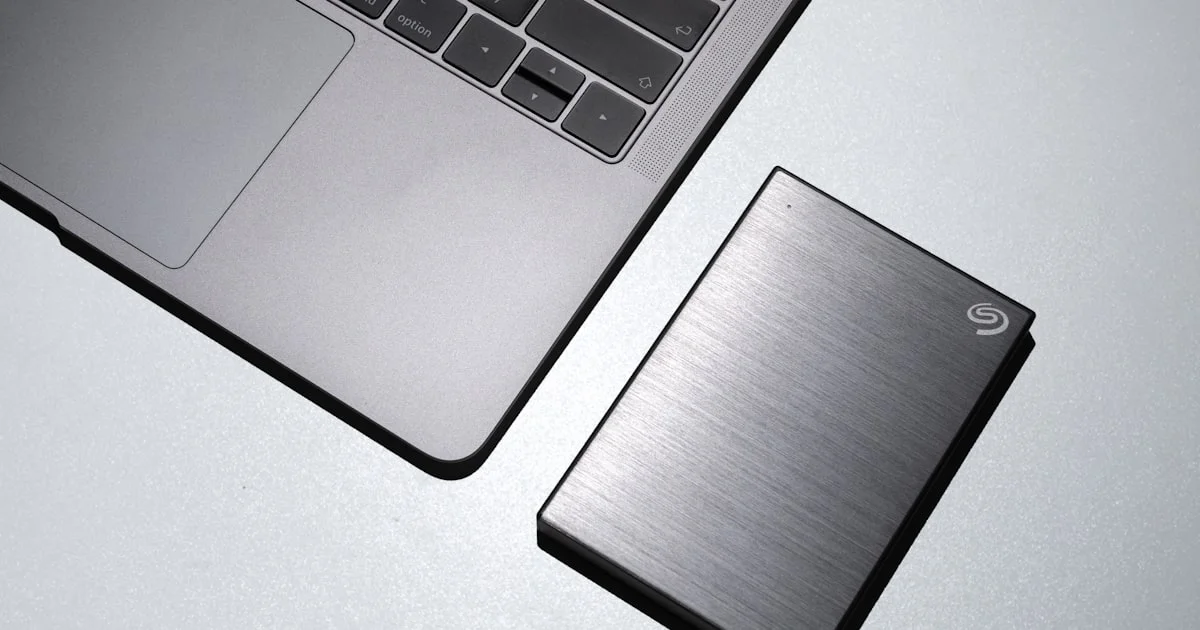
Console games keep getting bigger, and most PS5 and Xbox owners run out of onboard storage within the first year. If you have ever deleted a game you loved just to make room for a new one, the best external ssd for gaming is probably the cheapest upgrade you can make this year. It is quiet, it is portable, and it can turn a cramped console or laptop into one with room to spare.
This guide walks through what actually matters when shopping for gaming storage, how external SSDs compare to older hard drives, and how to set one up in a few minutes.
Key Takeaways
- Look for a USB-C, USB 3.2 Gen 2, or Thunderbolt connection — older USB 2.0 ports will bottleneck even a fast drive.
- 1TB is the sweet spot for most gamers; 2TB is worth it if you play several large open-world titles at once.
- PS5 external drives can store and run PS4 games directly, but current-gen PS5 titles must be moved to internal storage to launch.
- Xbox Series X|S can play current-gen games straight from a certified external SSD without moving anything.
- A drop-resistant, compact design matters more than raw speed for anyone who travels with their setup.
Best External SSD for Gaming: What Actually Matters
The short answer: the best external ssd for gaming is a USB-C drive with at least 1TB of space, real-world transfer speeds above 500MB/s, and a rating from your specific console or PC platform confirming it supports game storage or game launching. Everything else — color, brand, extra software — is secondary.
Speed matters because loading textures and level data off a slow drive causes stutter, especially in open-world games. Capacity matters because modern AAA titles routinely take up 50 to 100GB each, so a 500GB drive fills up fast. And compatibility matters because not every external drive that plugs into a PS5 or Xbox is actually allowed to run games from — some are limited to storage only.
Why Gamers Are Moving Storage Off the Console
Console makers ship consoles with a fixed amount of fast internal storage, and that space fills up quickly once you add a game library, saved video clips, and system updates. Expanding the internal drive on a PS5 usually means opening the console and installing an internal NVMe SSD, which some players are not comfortable doing. An external SSD skips that step entirely — plug it in, format it if asked, and you have extra space in minutes.
PC gamers have a simpler reason: a laptop or small-form-factor desktop often ships with a single small SSD. Rather than replacing it, an external drive lets you keep your current setup and simply add capacity, or move an entire game library between a desktop and a laptop without redownloading everything.
Portable SSD for PS5 and Xbox: What to Check First
A portable SSD for PS5 and Xbox has to clear a few basic requirements before it is worth buying, and both major consoles support external SSDs — but the rules for using one are different enough to trip people up.
PS5 storage rules
A PS5 lets you store PS5 games on an external USB drive, but you cannot launch them directly from most external drives — you have to move them back to the internal SSD or an installed expansion card first. PS4 games are more flexible and can run directly from an external USB drive without moving anything.
Xbox Series X|S storage rules
Xbox is more permissive. A certified external SSD, once set up as expanded storage, can run current-generation Xbox Series X|S games directly, no transfer step required. Xbox One games can also run from external drives with fewer restrictions overall.
External SSD vs External Hard Drive: Key Differences
Traditional external hard drives (HDDs) are still sold because they are cheap per gigabyte, but for gaming they lag behind SSDs in almost every way that matters day to day.
- Speed: SSDs transfer data many times faster than spinning hard drives, which means shorter game installs and less loading-screen stutter.
- Durability: SSDs have no moving parts, so they handle bumps, drops, and travel far better than HDDs.
- Noise and heat: SSDs run silently and cooler, while HDDs can whir and warm up under heavy use.
- Price per gigabyte: HDDs are still cheaper for bulk storage like video backups, which is the one place they still make sense.
- Size and weight: Most portable SSDs are small enough to fit in a pocket, while portable HDDs tend to be bulkier.

How to Set Up Your External SSD for Gaming
Setting up a new drive takes only a few minutes on either a console or a PC.
- Plug the SSD into a USB-C or USB 3.0 port on your console or computer using the included cable.
- When prompted, choose to format the drive for your device — this will erase anything already on it, so back up first if needed.
- On PS5 or Xbox, open the storage settings menu and confirm the drive is recognized as extended or expanded storage.
- Move or install games onto the new drive from your library or store app.
- Safely eject the drive before unplugging it if you plan to disconnect it while the console is on.
Best External SSD Under $100: What You Get at Each Price
Finding the best external SSD under $100 is easier than it sounds, since gaming-focused external SSDs are sold in a wide enough range that going over budget usually is not necessary. Entry-level 500GB to 1TB drives under $100 typically use standard USB 3.2 Gen 2 speeds, which is plenty for most console libraries. Spending more usually buys higher capacity, faster Gen 2×2 or Thunderbolt speeds, and tougher rugged casings rather than a meaningfully different everyday experience for most players.
| Drive Type | Best For | Trade-Offs |
|---|---|---|
| Budget 1TB SSD | Casual console gamers on a tight budget | Lower top speed, basic plastic casing |
| Mid-range 1–2TB SSD | Most PS5 and Xbox owners with growing libraries | Slightly higher price, still not ruggedized |
| High-speed 2TB+ SSD | PC gamers who also edit video or stream | Higher cost, may need a compatible high-speed port |
| Rugged travel SSD | Gamers who travel often or play on the go | Premium price for drop and water resistance |
Fastest External SSD Picks for 2026
The fastest external SSD 2026 shoppers can buy leans on USB 3.2 Gen 2×2 or Thunderbolt connections to push well past older USB standards, but real-world gains only show up if your console or PC port supports that same standard. A top-tier SSD plugged into an older USB port will simply run at the port’s slower speed, so matching the drive to your hardware matters more than chasing the highest advertised number. For most PS5 and Xbox players, a solid Gen 2 drive already removes the storage bottleneck; the fastest tier mainly benefits PC users doing heavy file transfers or streaming from the same drive.
Frequently Asked Questions
Here are quick answers to the questions gamers ask most often before buying external storage.
Can I play PS5 games directly from an external SSD?
Not yet for current-gen titles — you can store them on an external drive, but you need to move them back to internal storage to play. PS4 games can run directly from external USB storage.
Do I need a special SSD for Xbox, or will any drive work?
Xbox recommends certified external SSDs sold specifically for game storage; other USB drives may work for general file storage but are not guaranteed to run games properly.
Is 1TB enough external storage for gaming?
For most players with a handful of active titles, yes. Heavy multi-game libraries or frequent downloads of large open-world titles benefit from 2TB or more.
Will an external SSD work with both my console and my PC?
Most USB-C external SSDs work across PS5, Xbox, and PC, though you may need to reformat the drive when switching between a console and a computer.
Conclusion
An external SSD is one of the simplest upgrades available for anyone running out of game storage. Match the drive’s connection type and capacity to your console or PC, keep the platform’s specific rules for launching games in mind, and you will get a faster, quieter, more portable setup without opening your hardware.


