
Most small teams don’t fail at project management because they lack ambition — they fail because their tools don’t match how five or ten people actually work together. A good project management app for small teams should feel almost invisible: tasks get assigned, deadlines are visible to everyone, and nobody has to ask “wait, who’s doing this?” in a meeting. This guide walks through what actually matters when picking one, without the enterprise-software jargon that most comparison articles lean on.
Key Takeaways
- Small teams need simplicity over configurability — a tool with fewer settings to manage usually gets adopted faster than a flexible, complex one.
- Free task tracker apps can genuinely cover a five-person team; paid tiers earn their cost mainly through automation and reporting, not core task tracking.
- Look for real-time updates and comment threads on tasks, since scattered chat messages about project status are the main reason teams abandon a tool after a month.
- Team collaboration software works best when it replaces a specific existing habit (a shared spreadsheet, a group chat) rather than adding a brand-new step to the workflow.
- Mobile access matters more than most buyers expect — teams that check tasks only from a desktop miss updates during the exact hours things actually change.
Best Project Management App for Small Teams: The Short Answer
The short answer: the best project management app for small teams is the one your whole team will actually open every day, which usually means a simple board or list view, clear task ownership, and a free or low-cost tier that doesn’t force you into a per-seat pricing model before you’re ready. Complex tools built for enterprise project managers — with custom fields, approval chains, and resource-allocation charts — tend to sit unused by a five-person team that just needs to know what’s due this week. The right pick almost always favors clarity over configurability.
How We Judge Project Management Apps for Small Teams
Feature lists don’t tell you much on their own, so we look at a few practical signals instead: how many clicks it takes to create and assign a task, whether the free tier is genuinely usable or just a trial in disguise, how updates surface to teammates who aren’t actively looking at the app, and how steep the learning curve is for someone joining the team midway through a project. A tool that takes twenty minutes to explain to a new hire has already lost some of its value, no matter how powerful its feature set looks on a comparison chart.
Free Task Tracker App Review: What “Free” Actually Includes
A useful free task tracker app review has to look past the marketing page and check what the free tier actually limits, since restrictions vary a lot between providers. Common caps include a maximum number of active projects, a ceiling on team members, limited file storage per task, or basic reporting that doesn’t break down workload by person. None of these limits are dealbreakers for most small teams starting out — the core experience of creating tasks, assigning owners, and setting due dates is usually fully available even on a free plan.
Signs a Free Tier Will Outgrow You Fast
Watch for a strict cap on the number of projects rather than team members, since small teams often run several small projects at once even with a handful of people. A five-project ceiling can feel tight within a month, while a five-person-seat limit rarely does for a genuinely small team.
Team Collaboration Software Comparison: Boards, Lists, or Timelines?
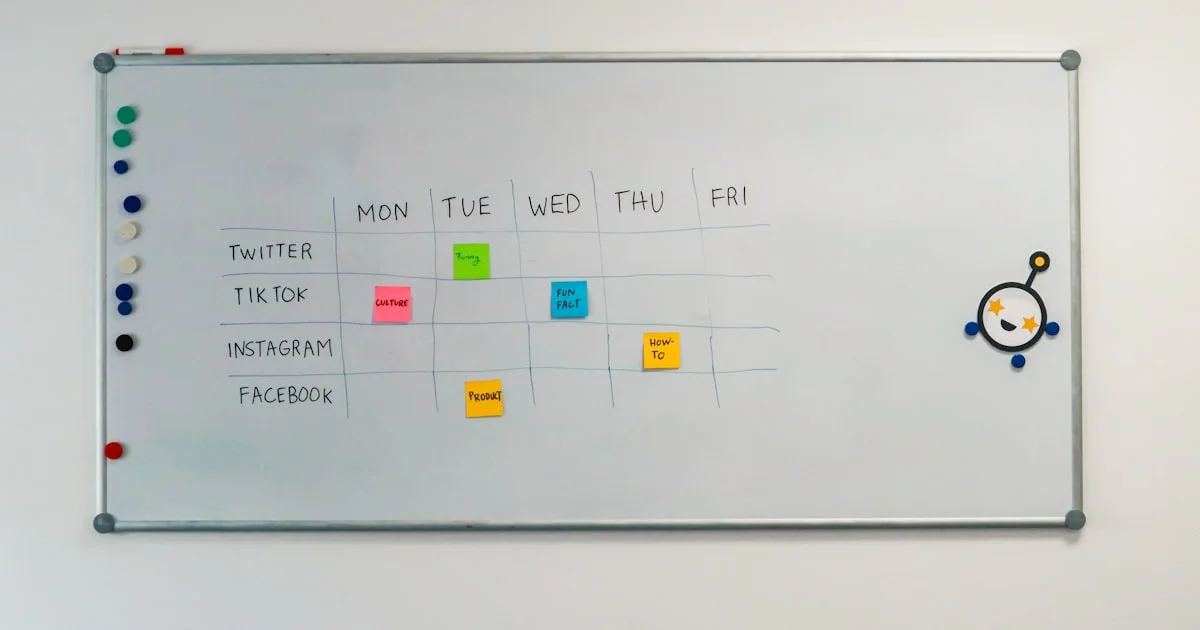
A fair team collaboration software comparison has to account for how differently teams think about their own work. Visual thinkers tend to prefer a kanban-style board with columns like “To Do,” “Doing,” and “Done,” since it shows progress at a glance. Teams juggling recurring tasks or checklists often do better with a simple list view instead. Teams running client work with fixed deadlines sometimes need a timeline or calendar view to see how tasks overlap across a week. Most modern apps offer more than one of these views, so the real comparison point is how easily you can switch between them without losing data or reformatting anything.

Best PM Tool Ranked 2026: Matching the Tool to Team Size
Rather than naming a single winner, here’s how to think through a best pm tool ranked 2026 style comparison based on team size and work style:
- Teams of 2-5 people — a lightweight list or board app with unlimited free tasks matters more than advanced reporting, which nobody has time to build anyway at this size.
- Teams of 6-15 people — look for role-based permissions and workload views, since coordination overhead starts becoming a real cost at this size.
- Teams managing client work — prioritize apps with guest access or shared views, so clients can check status without needing a full paid seat.
- Remote-first teams — real-time notifications and mobile apps matter more than desktop polish, since updates need to reach people across time zones quickly.
Common Onboarding Mistakes That Sink Adoption
Even a well-chosen tool fails if it’s rolled out badly. A few patterns come up again and again:
- Migrating every historical task and project on day one instead of starting fresh with current work.
- Skipping a shared naming convention for tasks and projects, which makes search useless within a few weeks.
- Assigning tasks without due dates, which quietly trains the team to ignore the tool’s deadline features entirely.
- Running the new tool alongside the old spreadsheet “just in case,” which guarantees neither one stays updated.
- Not designating one person to answer basic how-do-I-use-this questions during the first two weeks.
Comparing Project Management App Styles
Here’s a qualitative look at how different app styles trade off against each other, focused on fit rather than specific products.
| App Style | Best For | Trade-off |
|---|---|---|
| Simple kanban board | Visual thinkers, small creative teams | Weaker at tracking recurring or dependent tasks |
| List and checklist app | Operations-heavy or repetitive workflows | Less useful for visualizing overall project progress |
| Timeline or calendar app | Client work with fixed deadlines | Steeper learning curve for casual users |
| All-in-one workspace | Teams that also want docs and chat in one place | More setup time before the team sees value |
Frequently Asked Questions
Small teams evaluating their first real project management tool tend to ask a similar set of questions. Here are direct answers to the most common ones.
Do small teams really need a dedicated app instead of a shared spreadsheet?
Once a team passes about four or five people, a spreadsheet usually starts losing accuracy because updates happen in different tabs or get overwritten. A dedicated app keeps a single source of truth that updates in real time for everyone.
Is it worth paying for a premium plan right away?
Not usually. Most free tiers cover the core needs of a small team fully. Upgrade only once you hit a specific limit, like project count or storage, rather than paying upfront for features you haven’t tested a need for yet.
How long does it take a small team to fully adopt a new tool?
Most teams see real adoption within two to three weeks if the rollout includes a brief walkthrough and a clear rule that all task updates happen in the app, not in chat messages on the side.
What’s the biggest reason small teams abandon project management apps?
Overcomplication is the most common cause. Teams that pick a tool with more features than they need often stop updating it because maintaining all those fields feels like extra work rather than a time-saver.
Conclusion
The best project management app for small teams is rarely the one with the longest feature list — it’s the one your team will actually keep using three months from now. Start with a simple, mostly-free tool that matches how your team already thinks about work, resist the urge to over-configure it on day one, and only upgrade once you’ve clearly outgrown a specific limit.


